
Gravity anima Framer Componment
Details descriptions
Elevate your interactive designs with this advanced gravity-based falling animation component for Framer.
Building on proven physics foundations, it now supports direct SVG file import—giving you pixel-perfect control over which elements participate in the dynamic drop effect. Whether you're animating icons, illustrations, or custom graphics, you can selectively activate individual SVG layers without extra code.
The component also includes fully editable buttons: change text, adjust background colors, or switch to the new premium glass-morphism style for a sleek, modern look that enhances visual depth and user engagement.
Powered by the robust Matter.js physics engine, it delivers realistic collisions, wall constraints, and smooth object interactions. You can fine-tune gravity strength, bounciness, and object behavior directly in the canvas—simply drag and throw elements to preview motion in real time.
It supports both images and text with independent sizing options, and lets you customize the entire scene background using solid colors or uploaded images. Perfect for crafting eye-catching hero sections, interactive product demos, or delightful micro-interactions, this component blends creative flexibility with technical precision—all within Framer’s no-code/low-code environment.
Whether you’re a designer exploring motion or a developer seeking performant, reusable interactions, this tool streamlines the creation of immersive, physics-driven experiences without compromising on aesthetics or control.
Features
1、Canvas background can be replaced with your own image.
2、Adjustable drop speed by modifying the Gravity parameter—higher values result in faster falling.
3、Customizable bounce effect by adjusting the Dounce parameter—higher values produce more pronounced bouncing.
4、Modify manual drag effect by altering the Drag Power parameter.
5、Glass material effect is available and can be disabled.
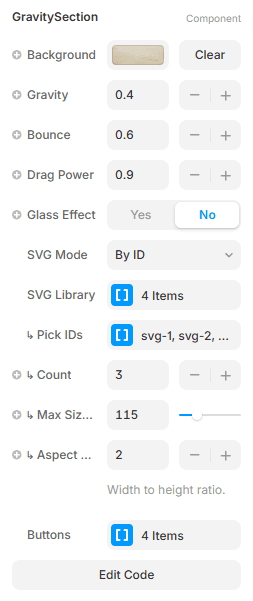
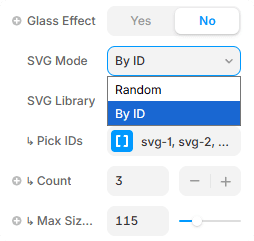
6、Falling elements can be imported as SVG files. Select specific SVG content to enter the canvas based on its ID number. Import desired elements by naming SVG files sequentially (e.g., svg-n), where the number determines the imported element.
Select the desired SVG in the “Pick IDs” section.
7、The “Count” parameter determines the number of elements entering the canvas, matching the number of SVG files.
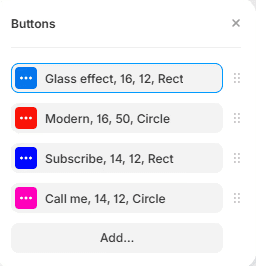
8、Max Size determines the button dimensions. Button content and font size are configurable.
9、Button shape can be set to either rectangular or circular.
Import Svg Image By Your Design
Falling elements can be imported as SVG files. Select specific SVG content to enter the canvas based on its ID number. Import desired elements by naming SVG files sequentially (e.g., svg-n), where the number determines the imported element.
Select the desired SVG in the “Pick IDs” section.
Button Content Can Be Modify
Max Size determines the button dimensions. Button content and font size are configurable.
Button shape can be set to either rectangular or circular.
Impact-Site-Verification: 338ad259-3a0b-476c-a467-cb119844ba7d